
WYSIWYG for Marketers: Build and A/B Test Pages with a 5.4KB Script
WYSIWYG stands for "what you see is what you get," pronounced WIZ-ee-wig (/ˈwɪziwɪɡ/). It describes any software where you edit content visually and the screen shows roughly the same layout, fonts, and formatting the final output will have. No code, no guesswork between draft and result.
TL;DR:
- WYSIWYG editors simplify content creation for non-technical users but often generate messy code, which can cause rendering inconsistencies across browsers and devices.
- Hybrid tools offering both visual editing and raw code access help a team balance ease of use with precise control over markup.
- The term originated in the early 1980s with desktop publishing tools emphasizing direct on-screen manipulation of content.
- For pixel-perfect or semantic control, a code or hybrid editor is better, while pure WYSIWYG is ideal for quick, non-technical content production.
- Built-in features like mobile preview mode and version history are crucial for avoiding the common pitfalls associated with WYSIWYG outputs.
Table of Contents
- What Does WYSIWYG Mean in Practice?
- How WYSIWYG Editors Actually Work
- Common Examples of WYSIWYG Tools You Already Use
- The Real Tradeoffs: Ease of Use vs. Precision
- Hybrid Editors: The Best of Both Worlds
- Where Did the Term WYSIWYG Come From?
- When Should You Use WYSIWYG vs. Code?
- A Marketer's Take on Visual Editing
- A Faster Way to Test What You Build
- Sources
What Does WYSIWYG Mean in Practice?
The concept behind WYSIWYG is "visual parity": what you're clicking and dragging on screen matches what a reader, viewer, or printer will eventually see. A WYSIWYG editor hides the underlying code so the person typing never has to think about tags or syntax; they just format text and watch it change in real time.
This matters because the "final output" isn't always a webpage. It can be:
- A printed document, like a résumé formatted in a word processor
- A live webpage built in a content management system
- A slide deck projected on a screen
- An email template rendered in an inbox
The term itself dates back decades (more on that shortly), but its job has stayed constant: let people who don't write code still produce polished, presentable work. Wikipedia's definition frames it almost identically, describing WYSIWYG software as anything that lets you edit content in a form resembling how it will look once printed or displayed.
How WYSIWYG Editors Actually Work
Behind every WYSIWYG interface sits a translation layer. You click a "bold" button or drag an image into place, and the editor quietly writes the HTML, CSS, or print formatting code for you. UTMB's explainer describes this as removing the need to type markup or layout commands manually. You never see the code unless you go looking for it.
Most WYSIWYG tools share a similar toolbar structure; for more details on visual editors in content publishing workflows, visit Our Services — Social, SEO, Websites & Automations | HarbourSide Digital.
- Formatting controls for fonts, headings, bold, italics, and color
- Insertion tools for images, tables, links, and embedded media
- Layout controls like drag-and-drop columns, spacing, and alignment
- A live preview that updates the instant you make a change
A concrete example: drop a photo into an email builder, resize it by dragging a corner, and the tool generates the correct width and height attributes in the HTML automatically. You never touch a line of code, but the code exists and updates every time you move something.
Pro Tip: If you're editing something that will be published across multiple screen sizes, don't trust the preview at just one width. Toggle the mobile preview mode before you publish. What looks perfect on a desktop editor can break entirely on a phone.
Common Examples of WYSIWYG Tools You Already Use
WYSIWYG isn't a niche category. It's likely the majority of how you produce written content already.
- Word processors like the ones used for résumés, reports, and letters, where you see page breaks and fonts exactly as they'll print
- Website builders and CMS visual editors, where dragging a block onto a page shows the live layout
- Email and template editors, which preview how a newsletter will render in an inbox
- Slide and presentation software, where you build slides visually rather than scripting them
These tools share a common thread: they're built for speed and for people without a coding background. TechTarget's definition puts it simply. WYSIWYG shows content the way it will appear on an interface, webpage, slide, or printed document, whichever applies. That's the entire point: skip the mental translation between code and output.
The Real Tradeoffs: Ease of Use vs. Precision
WYSIWYG editors win on speed and accessibility. Anyone can open one and start producing something usable within minutes, with no learning curve for syntax or tags. That's a genuine advantage for teams without a developer on hand.
But convenience comes at a cost. WYSIWYG editors sometimes generate messy, bloated markup behind the scenes, especially when content gets copied and pasted from another program like a word processor. That copy-paste habit is one of the most common sources of broken formatting in web content: invisible styling tags ride along with the pasted text and cause inconsistent rendering across browsers.
The tradeoff, at a glance:
| Strength | Weakness |
|---|---|
| No coding skills required | Limited control over exact markup |
| Immediate visual feedback | Can generate bloated or inconsistent HTML |
| Fast for non-technical creators | Cross-browser or cross-device rendering can differ from the preview |
HowToGeek notes that developers often avoid pure WYSIWYG editors for exactly this reason: they'd rather write clean code themselves than clean up after an automated tool. That's a fair trade for a marketer publishing a landing page. It's a much worse trade for an engineer building a production site.
Hybrid Editors: The Best of Both Worlds
A growing number of platforms now split the difference. Hybrid editors offer a WYSIWYG visual mode for everyday editing, plus a separate code or markdown view for anyone who needs to fix something the visual tool got wrong.
- Visual plus HTML toggle: edit visually, then flip to raw code to clean up markup
- Markdown-first workflows: write in plain text with light formatting syntax, useful for developers and technical writers who still want a readable draft
- Code-first editors with live preview: the inverse of WYSIWYG, built for people who think in code but still want to see the result
Teams tend to reach for a hybrid model when non-technical staff and developers share ownership of the same content. Marketers build the page visually; a developer opens the code view afterward to tighten up structure or fix an inconsistency before it ships.
Where Did the Term WYSIWYG Come From?
The acronym isn't a modern invention. The Oxford English Dictionary traces its earliest documented use to Byte Magazine in the early 1980s, right as personal computing and desktop publishing were taking off. Early graphical editors like Xerox's Bravo introduced the idea of direct, on-screen manipulation of text and layout, a radical departure from the command-line publishing tools that came before.
As GUIs spread through the decade, "WYSIWYG" stopped being a technical curiosity and became standard tech vocabulary, shorthand for any tool that shows you the finished product while you're still building it.
When Should You Use WYSIWYG vs. Code?
Three questions settle most of the decision:
- Do you need pixel-perfect, semantic markup control? If yes, lean toward code or a hybrid editor's code view.
- Are non-developers doing most of the editing? If yes, WYSIWYG saves real time and training.
- Will a developer need to touch the output later? If yes, a hybrid model prevents handoff friction.
If you're picking a visual editor, look for a clean HTML output option, a mobile preview, and version history. Those three features catch most of the problems that give WYSIWYG tools their bad reputation among developers.
Pro Tip: Test any new WYSIWYG editor by building one real page, then viewing its generated source code. If the HTML looks reasonably clean, the tool respects structure. If it's a mess of nested spans and inline styles, expect rendering headaches down the road.
A Marketer's Take on Visual Editing
Visual editors earn their keep in one place: speed of iteration. Building and reshuffling landing page variants without waiting on a developer is what makes rapid A/B testing possible for lean teams. The catch is that visual convenience isn't a substitute for measurement discipline or a quick markup check before launch. Pair the editor with real QA, and it's a genuine asset.
— Juan
A Faster Way to Test What You Build
Building a page visually is only half the job. You also need to know if the change actually worked, and that's where a plain WYSIWYG tool stops short. Stellar pairs a no-code visual editor with built-in A/B testing, so the same drag-and-drop interface that builds your landing page also measures which version converts, all through a script light enough (5.4KB) not to slow your site down.
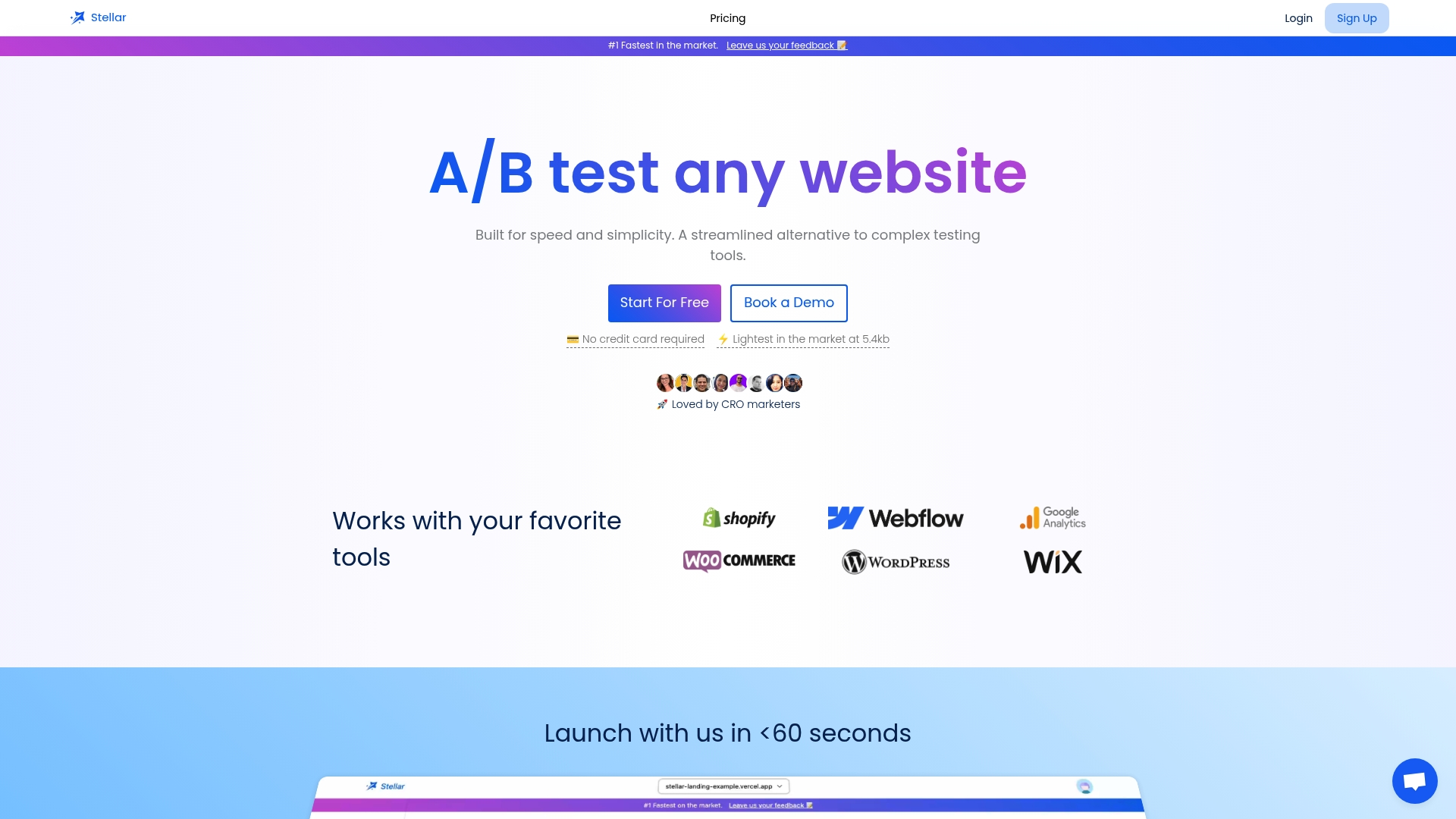
It's built for marketing teams at small and midsize businesses who want to launch and test variants fast, without pulling a developer into every layout change. If you're already comfortable using visual editors for marketing work, the next logical step is testing what you publish, not just building it. Check out Stellar's platform and see what it takes to launch your first test.
Sources
- What is a WYSIWYG editor? — UTMB
- What Is a WYSIWYG Editor? — HowToGeek
- WYSIWYG adjective (& n.) meanings, etymology and more | OED
- WYSIWYG — Wikipedia
Recommended
Published: 8/31/2026