
Form Test: How to Build a Quiz Form and Test It First
A "form test" means one of two things: a form that tests people (a quiz with scored answers), or a test run of a form before real people see it. You can do both in about an hour. Build the quiz in Google Forms or Microsoft Forms, preview it on a phone and a desktop, submit a few deliberate test answers, then share it and read the responses.
This guide covers both meanings in order. First the build, then the pre-launch check, then sharing and reading results. The last part is for marketers: how to spot usability and conversion problems in your form data, and how to prove a fix works.
TL;DR
- To make a test in Google Forms, open a form, click Settings and turn on "Make this a quiz". Then add questions, an answer key and points.
- Always preview before sharing. Submit one valid answer and one deliberately broken one, then repeat on a phone-width screen.
- Check every branch, required field, error message, confirmation page and notification email, not just the first screen.
- After launch, read the response data for drop-off and error patterns. Then A/B test the fix instead of guessing.
Table of Contents
- Quiz or form: pick the right type first
- Build a test in Google Forms
- Build a test in Microsoft Forms
- How to test a form before you share it
- Share the form and read the responses
- Find usability and conversion problems in your response data
- Our perspective on testing forms
- Run your form experiments with Stellar
- Quick checklist before you hit share
- FAQ
- Sources
Quiz or form: pick the right type first
A quiz scores people. A survey form collects opinions. The two look alike in a builder but behave differently. One university guide to Microsoft Forms puts it this way: quizzes assess learning and give feedback, while forms suit surveys and feedback gathering. In a quiz you can attach scores, math equations and feedback to chosen answers.
Use a quiz when there is a right answer: onboarding checks, product knowledge tests, lead-qualifying assessments with a score. Use a plain form when you want opinions, contact details or requests. If you are weighing the two for marketing feedback, this piece on creating effective surveys for actionable insights helps you decide which format fits.

Build a test in Google Forms
Google documents the process in its help center. The steps below follow Google's quiz instructions.
- Open a form in Google Forms and click Settings.
- Turn on Make this a quiz.
- Add your questions.
- On each question, click Answer key at the bottom left and pick the correct answer or answers.
- In the top right, set how many points the question is worth.
- Optionally click Add answer feedback to attach written or YouTube video feedback.
What Google Forms can grade automatically
Auto-grading works on multiple choice, checkboxes and dropdown questions. Checkbox questions are strict: a response counts as correct only if every right option and no wrong option is ticked, with no partial credit by default. Keep that in mind when you write "select all that apply" questions. Short-answer and paragraph questions need manual review.
The same guide notes you can release grades in two ways: immediately after each submission, which suits low-stakes checks, or later after manual review, which suits formal assessments. For a lead-qualifying quiz, immediate release is usually what you want.
Build a test in Microsoft Forms
Microsoft's route is similar. Per Microsoft's quiz guide, go to forms.office.com, select New Quiz and type a name. Then choose a question type: Choice, Text, Rating, Date, Ranking, Likert, File upload or Net Promoter Score. Mark the correct answer with the check mark and enter a value in the Points box.
Limits matter if your test is long. A university support page states that Microsoft Forms allows up to 200 questions per form or quiz. It also supports images in questions or answers, text feedback per question, multiple-answer selection and required questions.
Write questions that test what you mean
The tool grades what you write, so the question is where most quiz problems start. A few habits help:
- One idea per question. If a wrong answer could mean two different gaps in knowledge, split it.
- Make wrong options plausible but clearly wrong. Joke options teach nothing.
- Keep labels short and free of internal jargon. A teammate who did not write the questions is the best judge of confusing wording.
- Mark only the questions that matter as required. Forcing every field raises abandonment.
How to test a form before you share it
This is the step most people skip and the one that saves the most embarrassment. Every builder has a preview mode, and they differ in one important way: some save your test answers and some do not.
| Builder behavior | What it means for you |
|---|---|
| Microsoft Forms: select Preview (computer) or the mobile icon, answer, then Submit to test, then Back to keep editing | Preview supports a full run-through, including a mobile toggle |
| Formspace: the Preview tab is interactive | Completing it creates no submission, so to test collection you must publish and open the live link |
| OpenForms: Save and preview, or an external test link under Settings > Testing | Test responses are labeled "Test" in the Responses tab |
| Responsly: Preview, complete and click Send | The test answer is saved in Analysis, so you can check charts, exports and per-question views |
Before you start, check how your own tool treats test answers. If previews do not store data, you cannot confirm that results land where you expect until the form is live.
Write a mini test plan
A short plan beats random clicking. One builder's help center suggests you write down the result each test must prove, pick an ordinary respondent case and a failure case, and include a path for each logic branch. It also says to test scheduled opening and response-limit boundaries.
A plan for a ten-question quiz might look like this:
- Happy path: answer everything correctly with clearly labeled test details, such as "TEST Jane". Confirm the score and the thank-you page.
- Worst-case path: answer everything wrong. Confirm the feedback shows and the score is zero, not blank.
- Validation path: leave required fields empty and enter an invalid email or number. Confirm the error message tells people what to fix.
- Branch paths: if answers send people to different pages, walk every route once.
- Notification path: confirm the email or alert reaches the right inbox and the item is usable.
The validation and notification steps come straight from published testing guidance: try empty required fields and invalid entries, check the thank-you page and confirmation emails, and then delete the practice responses. The same source advises testing each choice, page jump and language, plus keyboard navigation and a narrow screen.
One point of division of labor: a builder can confirm field validation, but the recipient should confirm the notification reaches the intended address. Ask the person who will receive the results to check their own inbox.
Check every device and browser
Most forms are opened on phones. A pre-launch guide recommends you open the live preview on a phone, tablet and desktop, and on more than one browser. Look for:
- Text you can read without zooming.
- Buttons that are easy to tap with a thumb.
- Grids and matrix questions that do not overflow the screen.
- Images that load quickly on a slower mobile connection.
- Translated versions, since translated text can be longer and break layouts.
Another guide adds a point many people miss: hosted and embedded forms can behave differently on small screens. If you will embed the form in a landing page, test it there, not only on the builder's own link. Microsoft Forms lets you toggle between computer and mobile views from the Preview button, which is a good first pass but not a replacement for a real phone.
Survey tools with multi-page logic need extra care. A help center for one of them says to wait for the draft to finish saving, open the full preview, and try each branch, required question, screen-out and ending. If consent text or a debrief page is enabled, check those too.
For checkout and payment forms, where a bug costs money, we cover the extra checks in how to test checkout forms for higher conversion.
Share the form and read the responses
Sharing in Google Forms
Per Google Workspace guidance, publish the form, choose who can respond under Manage, then click Share. You can give access to anyone with a link or to target audiences, add an expiration date, notify responders, copy a short link or embed the HTML. Review summaries or single responses in the Responses tab, or link them to Google Sheets.
One change to plan for: Google says that starting in September 2026, forms have limits of 1 GB total storage and 500,000 responses per form. Large campaigns should check the current numbers on that page.
Sharing in Microsoft Forms
Click Collect responses to generate a link, QR code or embed code. A university knowledge base lists the audience options: anyone can respond, only people in your organization, or specific people. You can share by copied link, Outlook, Teams, a downloadable QR code or a website embed.
Results appear in real time in the Responses tab, with the number of responses and the average score. From there you can export to Excel with Open in Excel, select Review answers for individual responses, and Post scores so respondents can see feedback and results. Charts and summaries are generated automatically.
Find usability and conversion problems in your response data
A form that technically works can still lose people. Test submissions and live responses show where. You are looking for patterns, not single odd answers.
- Completion rate against starts. If many people open the form but few submit, friction is real. Look at where they stop.
- Questions with the most blanks or skips. Optional questions that nearly everyone skips are candidates for removal. Required ones with junk answers suggest people do not want to share that information.
- Repeated invalid entries. Many bad email or phone entries point to unclear formatting rules or an overly strict validator.
- Quiz questions nearly everyone misses. Either the question is confusing or the topic needs teaching. Compare the wording before blaming respondents.
- Device split. If phone completions lag desktop badly, go back to your phone-width test and look at tap targets and line breaks.
- Time to complete. A long completion time on a short form usually means one question is causing hesitation.
Builder dashboards cover basic charts, but field-level drop-off needs form analytics or a testing tool. The goal is a hypothesis you can state in one sentence, such as "Removing the company-size dropdown will lift submissions."
Then test it. Opinions about forms are cheap and A/B tests are not. Our guides on form testing for marketers and form testing strategies for CRO teams walk through what to change first: field count, labels, button copy, layout and error messages. If you collect answers through on-page questionnaires, website questionnaires can be the fastest way to get an experiment live.
When you run an experiment, check the setup before trusting the winner. Our quick triage for SRM, A/A and logging errors shows the common mistakes that make a result look better or worse than it is.
Our perspective on testing forms
Most teams treat a form as finished once it submits without an error. We see it differently: a form is a page with a job, and the job is measured in completed submissions.
That is why we built Stellar around quick experiments. A no-code visual editor lets a marketer change a field label, a button or a layout without waiting for a developer. Advanced goal tracking records the form submission as the outcome, and real-time analytics show the effect as visitors arrive.
Speed matters here because a form often sits on a landing page. Our script is designed to be lightweight, at 5.4KB, so the testing layer does not become one more thing slowing the page down. We aim for tests that launch in minutes and teach you something the same week.
Preview checks catch bugs. Experiments catch the problems that bugs never show: a question people dislike, a button nobody notices. Do both, in that order.
Juan
Run your form experiments with Stellar
Once your form works, the next gain comes from improving it. Stellar is an A/B testing platform for marketers and growth teams, with a no-code visual editor, goal tracking and real-time analytics. It connects to WordPress, Shopify, Webflow, Wix, Squarespace, Framer and Bubble.
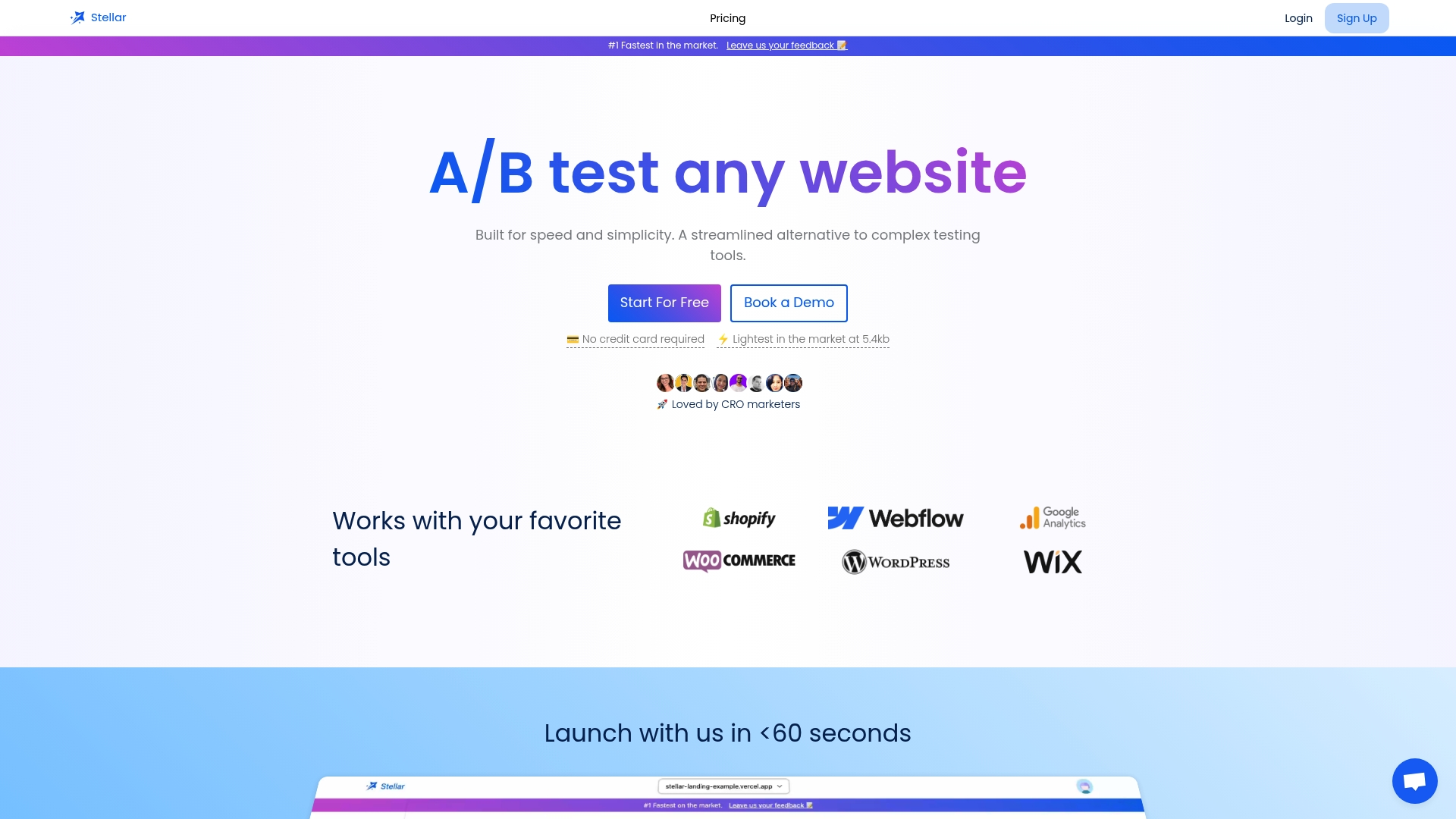
Pricing is based on monthly tracked users. The Sandbox plan is $0 per month and is meant for businesses under 25,000 monthly tracked users. Paid plans are Plus at $29 per month, Pro at $99 per month and Scale at $399 per month. Enterprise has no published price. See the current plans on the Stellar pricing page and start with a form you already have live.
Quick checklist before you hit share
- Quiz setting is on, answer key and points are set for every graded question.
- You submitted a valid test answer and a deliberately wrong one.
- Required fields, invalid email and invalid number each show a clear error.
- Every logic branch and ending was walked once.
- The thank-you page, confirmation email and notification email all arrived.
- You checked a phone, a tablet, a desktop and a second browser.
- Practice responses are deleted so they do not skew your data.
- Who can respond and any expiration date are set on purpose.
FAQ
How do I make a form test?
In Google Forms, open a form, click Settings and turn on "Make this a quiz". Add questions, then use Answer key to mark correct answers and set points. In Microsoft Forms, select New Quiz at forms.office.com and tick the correct answer on each question.
How do I test a form before sharing it?
Use the preview mode to submit a valid answer and a broken one, then check error messages, the thank-you page and notification emails. Walk every logic branch and repeat the run on a phone-width screen. Delete practice responses afterward.
Can Google Forms grade a test?
Yes, for multiple choice, checkboxes and dropdown questions. Checkbox answers are correct only when every right option and no wrong ones are chosen. Written answers need manual grading, and you can release scores right after submission or after review.
How many questions can a Microsoft Forms quiz have?
A university support guide states up to 200 questions per form or quiz. Questions can include images, per-question feedback, multiple-answer selection and required settings. Long quizzes are better split across sections to keep completion up.
Sources
- Create & grade quizzes with Google Forms
- Create a quiz with Microsoft Forms
- Microsoft Forms for Teaching and Learning
- How to Create Self-Grading Course Quizzes Using Google Forms
- Test and Publish Your Form
- Creating a Form
- Testing the survey
- Testing and publishing a form
- Publish, test, and share your survey
- Prepare a test plan before sharing the form
- How to Test a Survey Before Launch
- Publish your form and get responses
- Microsoft Forms sharing and responses guide
- View & manage form responses
- How to Create Effective Surveys for Actionable Insights