
Launch GA4 A/B Tests Today With a 5.4KB Script for Marketers
GA4 doesn't run experiments. It never has. You run tests in a dedicated testing tool, then send variant assignments into Google Analytics as events or user properties so GA4 can build audiences and analyze outcomes. Google Optimize, the free tool that used to bridge this gap, was sunset in September 2023. The workaround now is a direct integration: experiment tool assigns a variant, fires an event into GA4, and you analyze from there.
TL;DR:
- GA4 requires experiment variants to be assigned by external tools and sent as events for analysis, as it cannot run experiments natively.
- Correctly firing impression events with precise parameters and registering them as custom dimensions or user properties is crucial for reliable data collection.
- Analyses are carried out within GA4 Explorations by building variant segments and comparing key metrics, but external significance testing is essential for valid conclusions.
- Common pitfalls include sample ratio mismatch, premature test stopping, and multivariable testing, which can all distort results and undermine validity.
- Using extensions like Stellar simplifies implementation by enabling marketers to run tests without engineering help, while maintaining audience separation avoids cross-test contamination.
Table of Contents
- What Google Analytics A/B Testing Actually Looks Like Now
- How to Pass Variant Assignments Into GA4
- Setting Up the Integration: Client-Side, Server-Side, and GTM
- How to Analyze A/B Test Results in GA4
- Common Pitfalls and How to Avoid Them
- Stellar in Practice: Feeding GA4 Without the Engineering Overhead
- Running Multiple Experiments Without Contaminating Each Other
- Where GA4 Falls Short for Rigorous Testing
- Integration Mechanics: Events and Audiences From the Developer Docs
- Practitioner Perspective: What to Prioritize on Day One
- Run Your Next Test Without the Engineering Queue
- Sources
What Google Analytics A/B Testing Actually Looks Like Now
Since Optimize disappeared, the workflow has consolidated around a pattern that Google's own documentation lays out clearly: your testing tool runs the experiment while GA4 interprets the results once you feed it variant data. GA4 was never built as an experimentation engine. It's a measurement layer, and a good one, but it needs to be told which user saw which version of your page.
The data flow works like this in practice:
- Your testing tool assigns a visitor to variant A or B and holds that assignment client side or server side.
- That assignment gets sent to GA4 as an event, typically
experience_impression, carrying an identifier for the experiment and the variant. - GA4 registers that identifier as a custom dimension or user property so it's queryable later.
- You build an audience per variant, either manually or through the Admin API.
- You compare those audiences inside a GA4 Exploration to see which variant actually moved the metrics you care about.
Every integration, whether it's a homegrown script or a commercial testing platform, has to complete that chain. Skip a link and your results become unreliable or unreadable.
How to Pass Variant Assignments Into GA4
The mechanics here are specific, and getting them wrong is the single most common reason teams end up with unusable experiment data. Google's developer integration guide spells out the recommended pattern in detail, and it's worth following closely rather than improvising your own event naming scheme.
- Fire an impression event. When a user gets bucketed into a variant, send an event (Google's docs use
experience_impression, though some tools useexperiment_impression) carrying the experiment ID and variant ID as parameters. - Format the variant string correctly. Google recommends a specific pattern for the
exp_variant_stringparameter:TOOL_ID-EXPERIENCE_ID-VARIANT_ID. This keeps experiments from different tools distinguishable inside GA4 if you ever run more than one platform. - Register the parameter as a custom dimension or user property. An unregistered event parameter is invisible in reports and Explorations. You have to explicitly turn it into a custom dimension (event scope) or a user property (user scope) inside GA4's admin settings before it shows up anywhere useful.
- Create per-variant audiences through the Admin API. Rather than manually rebuilding segments every time you launch a test, the Admin API lets you programmatically create and archive audiences tied to each variant, which matters if you're running experiments on any kind of frequency.
Scope choice matters more than people expect. A session-scoped dimension only tags the current session, which is fine for a single-session funnel test but breaks down if a user needs multiple visits to convert. A user property persists across sessions, which is what most multi-day tests actually need.
Pro Tip: Enable the "at any point in time" option when building variant audiences in GA4. It counts users who were ever assigned to a variant, not just users currently matching the condition, which meaningfully reduces the sample discrepancies you'd otherwise see between your testing tool's reported traffic split and what GA4 shows.
Setting Up the Integration: Client-Side, Server-Side, and GTM
Where you fire that impression event depends on whether you're prioritizing implementation speed or measurement accuracy. Client-side visual editors let you launch a test in minutes with no developer involved, but they introduce a flicker risk and depend on JavaScript executing reliably before a user bounces. Server-side or edge-based assignment avoids the flicker problem entirely and tends to produce cleaner data, at the cost of needing engineering time to wire up.
If you're using Google Tag Manager, the standard recipe looks like this:
- Create a custom event trigger that fires when your experiment tool pushes an impression to the data layer.
- Build a GA4 Event tag that sends
experiment_impression(or your tool's equivalent) withexperiment_idandvariant_idas parameters. - Add a user property variable if you need the assignment to persist across sessions, then map it in the same tag.
- Publish and immediately check GTM's Preview mode against GA4's DebugView side by side.
Before trusting a single number the test produces, run through a short validation pass. Check DebugView to confirm the event fires with the right parameters attached. Check GA4 Realtime to confirm both variants are actually populating. Confirm your per-variant audience sizes roughly match your traffic split, which is a quick manual SRM gut check before you go looking for it formally later.
Pro Tip: Run the validation checklist for at least 24 hours before trusting any data from a new test. A tag that fires correctly on your first test visit can still silently fail for a subset of real users because of ad blockers, consent mode defaults, or a redirect that drops the parameter.
How to Analyze A/B Test Results in GA4
Once variant data is flowing, analysis happens almost entirely inside Explorations, GA4's flexible reporting canvas. The workflow that shows up consistently across practitioner guides is build variant segments, drop them into a Blank Exploration, and compare the metrics that actually matter to the business, not just the ones that look good.
- Build a segment or audience for each variant using the custom dimension or user property you registered earlier.
- Open a Blank Exploration and add your variant segments as the comparison dimension.
- Choose your primary metric first. Conversion rate is the obvious one, but revenue per session or per user is often the metric that actually tells you whether a "winning" variant is worth shipping.
- Pull secondary metrics into the same view. Bounce rate, session duration, and pages per session catch cases where a variant technically converts more but degrades the experience for everyone else.
- Export the raw user and conversion counts per variant for external significance testing.
That last step isn't optional busywork. GA4 has no built-in significance calculator and no automated sample ratio mismatch (SRM) alert, so a variant showing a 12% lift with no confidence interval attached is just a number, not a decision. Run those exported counts through an external calculator (a basic two-proportion z-test tool works fine) and interpret the result against your actual business context, not just a p-value threshold.
Before you even get to significance, check for sample ratio mismatch. If your test was configured for an equal split and GA4 shows a large skew in user counts between variants, something in your implementation is broken. Redirect delays, a tag firing inconsistently, or bot traffic hitting one variant disproportionately are the usual culprits, and any of them invalidates the test until fixed.
Common Pitfalls and How to Avoid Them
Most invalid A/B tests fail for the same handful of reasons, and SRM, premature stopping, and mis-scoped dimensions top that list across nearly every practitioner postmortem worth reading.
- Stopping the test too early. A lift that looks dramatic on day three routinely evaporates by day fourteen as novelty effects fade and the sample stabilizes.
- Sample ratio mismatch. Redirect chains, tags that fire inconsistently, or duplicate tags double counting one variant will all skew your split away from what you configured.
- Wrong dimension scope. Session-scoped data on a test that needs to persist across visits, or vice versa, quietly corrupts your read on which variant actually won.
- Testing too many variables at once. A redesigned hero, new copy, and a different CTA color tested together tells you almost nothing about which change did the work.
| Pitfall | Root cause | Fix |
|---|---|---|
| Sample ratio mismatch | Redirect delay, inconsistent tag firing | Check expected vs. actual counts early in Explorations |
| Stopping test early | Impatience, novelty effect | Set a minimum duration and sample size before launch |
| Wrong dimension scope | Session vs. user property mismatch | Match scope to the funnel length being tested |
| Multivariable confusion | Testing several changes simultaneously | Isolate one variable per experiment |
Stellar in Practice: Feeding GA4 Without the Engineering Overhead
This is exactly the gap Stellar was built to close. Its script weighs 5.4KB, light enough to avoid the flicker and load-time penalty that heavier testing scripts introduce, and the no-code visual editor lets a marketer launch a variant without filing a ticket with engineering. Stellar can emit variant assignment events and user properties in a format GA4 recognizes, so the audience and Exploration workflow described above works without a custom build. Its real-time dashboard also gives you a second read to cross-check against whatever GA4 is reporting, which is a useful gut check when SRM is a concern.
Running Multiple Experiments Without Contaminating Each Other
The moment you run more than one test at a time, the real risk isn't the individual experiments, it's the users who land in more than one. A visitor bucketed into your pricing page variant and your onboarding flow variant simultaneously muddies both results, because you can no longer isolate which change caused which effect.

The fix starts with audience isolation. Before launching a second test, check whether its target audience overlaps meaningfully with an active test's audience. If your homepage test targets all visitors and your checkout test also targets all visitors, anyone who completes a purchase has been exposed to both, and your checkout numbers are now contaminated by whichever homepage variant that user happened to see.
A few practical guardrails help:
- Segment by page or funnel stage whenever possible, so a homepage test and a checkout test rarely share the same visitor pool.
- Use mutual exclusion groups if your testing platform supports them, which randomly assigns a user to only one experiment from a defined set.
- Track experiment IDs as a multi-value user property so you can filter out users exposed to more than one test during analysis, even if you didn't prevent the overlap upfront.
- Stagger launch dates for tests you know target overlapping traffic, rather than running them concurrently.
None of this eliminates the underlying tension, which is that most sites don't have enough distinct traffic pools to run five isolated experiments at once. Prioritize the tests with the biggest expected impact and accept that smaller, secondary tests may need to wait their turn.
Where GA4 Falls Short for Rigorous Testing
GA4 is a capable measurement layer, but it was designed as a general analytics platform, not a statistics engine, and that shows up in a few specific ways once you're running experiments seriously. There's no built-in significance calculator, no confidence interval on any conversion metric, and no automated SRM detection, which means every one of those checks is manual work you have to remember to do.
Data sampling and thresholding can also interfere with clean variant comparisons on lower-traffic properties. If a segment falls below GA4's reporting thresholds for a given metric, you'll see a blank or suppressed value instead of a real number, which is confusing the first time it happens mid-test.
The practical fix is treating GA4 as the audience and measurement layer, and pairing it with something built for the statistical side. Export your variant counts into a dedicated significance calculator rather than eyeballing a percentage difference in an Exploration. For a fuller picture of test design that accounts for these gaps, a practical guide to A/B testing setup walks through structuring tests so GA4's limitations don't become your project's limitations. Session recordings and heatmaps from a separate qualitative tool also fill in the "why" that GA4's quantitative data can't answer on its own, particularly useful when a test result surprises you and you need to understand the behavior behind the number, not just the number itself.
Integration Mechanics: Events and Audiences From the Developer Docs
The two mechanics that make everything else in this article work are the experience_impression event and Admin API audience creation, and Google's developer documentation is specific about both.
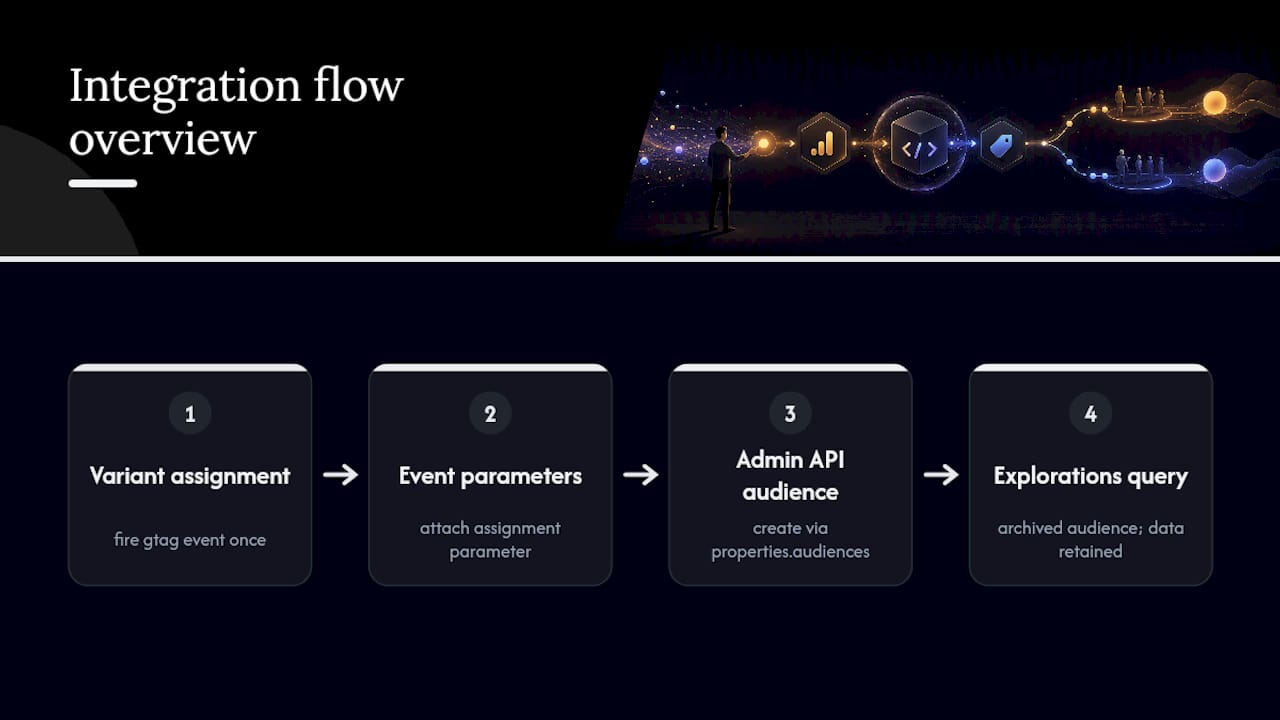
The event itself follows a straightforward gtag pattern. Google's own example fires something like gtag('event', 'experiment_impression', { 'experiment_id': 'homepage_hero_test', 'variant_id': 'variant_A' }); the moment a user is bucketed. That event needs to fire reliably and exactly once per assignment, since duplicate fires inflate your counts and skew the split you're trying to measure.
Audiences get built through the properties.audiences endpoint of the GA4 integration developer guide, which lets you programmatically create an audience definition tied to your registered event parameter or user property, rather than clicking through the UI every time you launch a test. This matters at scale: a team running a dozen tests a month doesn't want to hand-build a dozen audiences manually.
One detail that trips people up: archived audiences free up space in your GA4 property, but the underlying event data isn't deleted, it stays queryable in Explorations. That's a good reason to lean on event parameters rather than relying solely on audiences for anything you might want to revisit months later. For teams dealing with more unusual traffic patterns, like distinguishing bot or LLM crawler traffic from real experiment participants, tracking that traffic separately in GA4 is worth setting up before it quietly distorts your variant counts.
Practitioner Perspective: What to Prioritize on Day One
If I had to pick one thing to get right before anything else, it's variant attribution. A beautifully designed test built on a shaky event pipeline produces confident-sounding garbage. Get the event or user property firing correctly and run an SRM check before you look at a single conversion number.
After that, anchor your primary metric to revenue, not to a percentage lift that looks good in a screenshot. And if traffic is thin, don't force a quantitative test that will never reach significance. Run a smaller, scoped test and lean on session recordings or direct user interviews to fill the gap.
— Juan
Run Your Next Test Without the Engineering Queue
Everything above assumes you already have a way to assign variants and fire clean events into GA4. Stellar handles that half of the equation directly. Its 5.4KB script and no-code visual editor mean a marketer can launch a test, set the variant event to GA4-compatible format, and start comparing audiences the same day, without waiting on a developer sprint.
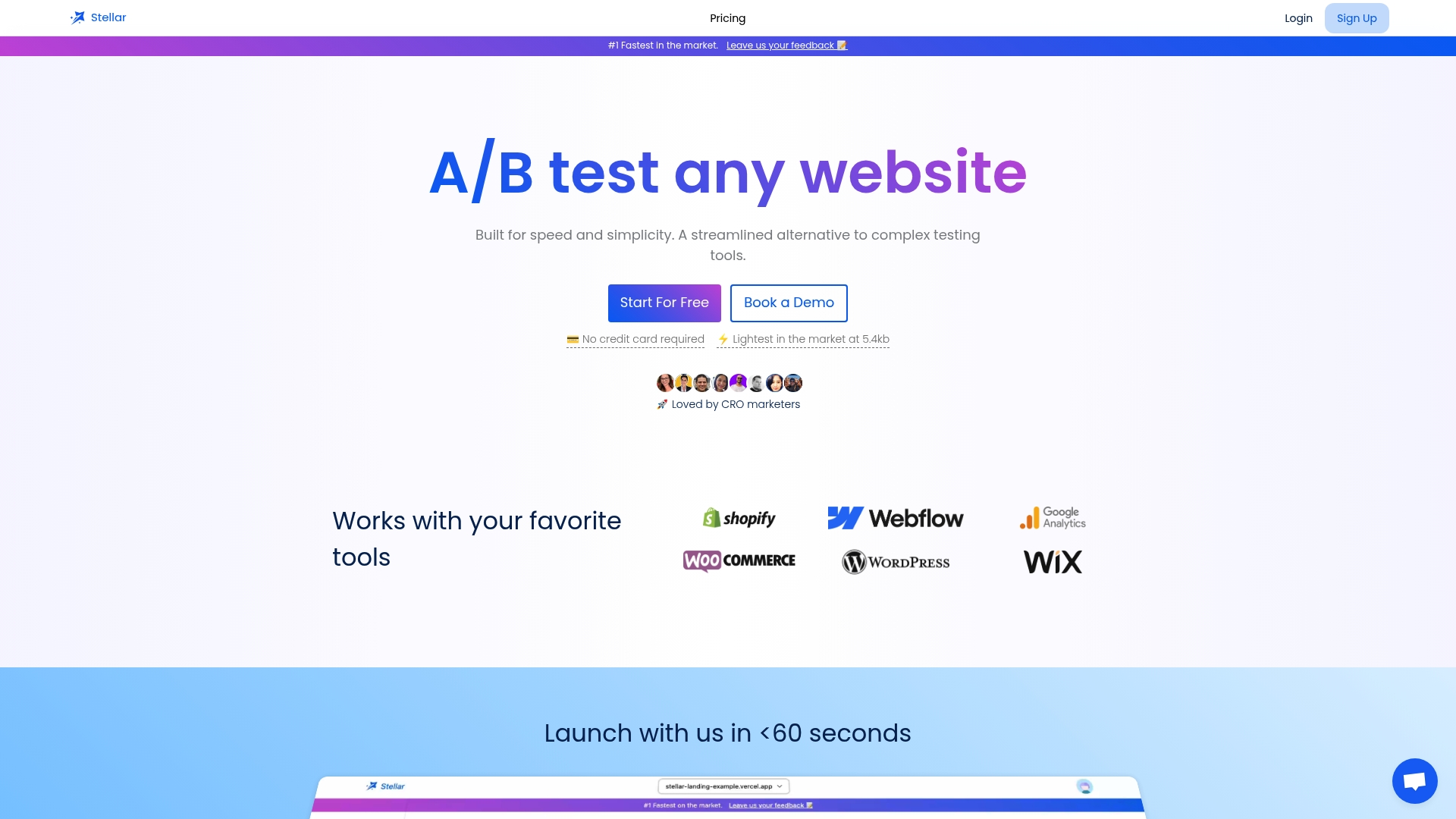
Dynamic keyword insertion and advanced goal tracking come built in, so you're not stitching together three tools to run one clean experiment. If you want the full setup walkthrough before you commit, the A/B testing checklist covers custom definitions and event tracking step by step. Otherwise, the fastest path is trying it directly: Stellar's free plan covers businesses under 25,000 monthly tracked users, which is enough room to validate your first GA4-fed experiment before paying for anything.
Sources
- GA4 A/B test - Analytics Help
- Sunset September 2023 Google Optimize - Analytics Help
- How to Analyze A/B Test Results with Google Analytics GA4 (2026 Guide) - DigitalSMB
Recommended
Published: 8/29/2026