
Website Crawl Test: Verify Googlebot Access and Fix Errors
A website crawl test checks whether search engine bots like Googlebot can actually reach, render, and index your pages, and it's the fastest way to catch the technical errors that quietly kill organic traffic. You don't need a full audit to start. Run these three checks in under five minutes:
- URL Inspection live test in Google Search Console: paste in a URL and check whether Google can crawl and index it right now.
- Robots.txt check: open yourdomain.com/robots.txt and confirm you're not accidentally blocking Googlebot from folders that matter.
- Quick header and meta scan: view page source (or use a bot simulator) to look for a stray
noindextag or anX-Robots-Tagheader you didn't know existed.
When everything checks out, you'll see three specific signals: Crawl allowed = Yes, Page fetch = Successful, and Indexing allowed = Yes. Miss any one of those and you've found your problem before you've even opened a crawler tool.
Key Takeaways
Fixing crawl and indexing blockers before optimizing content is the single highest-leverage action in technical SEO, because no amount of content quality overcomes a page Googlebot can't reach.
| Point | Details |
|---|---|
| Validate single URLs first | Use Search Console's URL Inspection and Test Live URL before running a full site crawl. |
| Check crawl allowed before indexing | A robots.txt block prevents Googlebot from ever reading noindex tags, so check access first. |
| Match crawler to site size | Free tools work under a few hundred pages; larger sites need paid desktop or enterprise crawlers. |
| Fix blockers before content tweaks | Prioritize robots.txt, noindex, and server errors over on-page content changes. |
| Schedule recurring checks | Run a lightweight crawl monthly and a full site-wide crawl with rendering quarterly. |
Tools and docs worth bookmarking
- URL Inspection tool for single-page crawl and index status checks straight from Search Console.
- Check if a URL is available to Google for the exact steps behind live testing and troubleshooting.
- Sitechecker's crawler for a fast, free online scan of robots.txt, broken links, and basic on-page issues.
- CrawlerCheck for simulating Googlebot and other bots to catch hidden firewall or header-level blocks.
- Crawl Lab for testing crawler behavior against redirects, delays, and rendering edge cases.
- Screaming Frog and Sitebulb for full desktop site crawls with JavaScript rendering; DeepCrawl for enterprise-scale, scheduled audits.
- Gostellar's guide on SEO tests every marketer should run for folding crawl checks into a regular testing cadence.
- A partner resource on technical SEO tool comparisons for deeper tool-by-tool evaluation criteria.
Table of Contents
- How Do You Run a Single-URL Crawl Test?
- When Should You Run a Site-Wide Crawl Instead?
- How Do You Run a Full Crawl Test Step by Step?
- What Do Common Crawl Errors Mean, and How Do You Fix Them?
- When Do You Need JavaScript Rendering or Log-File Analysis?
- Is It Legal to Run a Crawl Test on Any Website?
- What Should Your Post-Crawl Follow-Up Checklist Include?
- Frequently Asked Questions
- Sources
How Do You Run a Single-URL Crawl Test?
Start with one URL, not your whole site. Most crawlability problems that actually cost businesses traffic show up on a handful of pages: a new landing page that never got indexed, a product page that vanished from search, a blog post stuck in limbo. Google's URL Inspection tool is built exactly for this, and it's free inside Search Console.
Open Search Console, paste the URL into the inspection bar at the top, and wait a few seconds. You'll get two views: the indexed status Google already has on file, and the option to run a Test Live URL check that crawls the page right now. Four fields matter most:
- Crawl allowed: whether robots.txt permits Googlebot to fetch the page.
- Page fetch: whether the server actually returned the page successfully.
- Indexing allowed: whether a noindex directive or similar rule is blocking the page from search results.
- Last crawl: the timestamp of Google's most recent visit, which tells you if changes have even been seen yet.
Here's a detail most guides skip: those checks aren't independent. If robots.txt blocks a URL, Googlebot never reads the page's HTML, which means it can't see a noindex tag even if one exists. Crawl allowed and indexing allowed are separate signals that depend on each other in a specific order, so always confirm crawl access before troubleshooting indexing.
Use the indexed view when you want to see how Google currently sees the page. Use the live test when you've just made a fix and want current, real-time results. And use Request Indexing sparingly. It nudges Google to recrawl sooner, but it won't override a technical block; if crawl or indexing is still disallowed, requesting indexing does nothing.
If you need to check a URL you don't own, or you want to see how a page's structured data renders for rich results, Google's Rich Results Test works without Search Console access. Enter any public URL and it'll show the rendered HTML, detected schema markup, and any errors in your structured data, which is useful for competitive research or auditing a client site before you've been granted access.
Pro Tip: After fixing a robots.txt rule or removing a noindex tag, don't wait for Google to recrawl on its own. Run Test Live URL immediately. It shows you a fresh, unfiltered fetch, so you'll know within seconds if the fix actually worked instead of waiting days wondering.
When Should You Run a Site-Wide Crawl Instead?
Single-URL checks answer "is this one page okay?" Site-wide crawls answer "how many pages have this same problem, and where else is it hiding?" If you've fixed one broken page and moved on, you've probably left a template-level bug affecting dozens more.
The two approaches split roughly like this: single-URL tools (Search Console, Rich Results Test, quick bot simulators) are for spot-checking a specific page you're worried about. Site-wide crawlers (Screaming Frog, Sitebulb, DeepCrawl) crawl your entire site the way a search bot would, following internal links and flagging systemic issues, broken links, duplicate content, and indexing blocks across every page they can reach.
| Approach | Scope | JS rendering | Cost | Ease of use | Output |
|---|---|---|---|---|---|
| Single-URL checks | One page at a time | Yes, live rendered | Free | Simple web interface | On-screen report |
| Lightweight online crawlers | Small to mid-size sites | Limited in many tools | Free tier, capped scans | Browser-based, no install | CSV export, on-page summary |
| Desktop crawlers (Screaming Frog, Sitebulb) | Full site, thousands of URLs | Yes, with JS rendering mode | Free tier, paid license for full features | Desktop app, moderate learning curve | CSV, XML sitemap, visual reports |
| Enterprise/cloud crawlers (DeepCrawl) | Very large sites, ongoing monitoring | Yes, built-in | Paid, enterprise pricing | Dashboard-based, built for teams | Scheduled reports, API access, log integration |
Free lightweight tools like Sitechecker are genuinely useful for quick audits. They'll flag robots.txt issues, broken links, and missing meta tags without any setup. But most free crawl tools cap how many URLs they'll scan in a single pass, somewhere between 50 and 500 URLs, so a 10,000-page e-commerce site will hit that ceiling fast.
That's when it's worth stepping up to Screaming Frog or Sitebulb for a full desktop crawl, or DeepCrawl if you're managing multiple large sites and want scheduled crawls with historical comparisons. The rule of thumb: if your site has fewer than a few hundred indexable pages, a free tool will probably get you there. Past that, budget for a paid crawler, because partial data on a large site tends to hide exactly the problems you're looking for.
How Do You Run a Full Crawl Test Step by Step?
A site-wide crawl gets messy fast if you don't scope it first. Before you hit "start," answer three questions: What's your XML sitemap URL, so the crawler knows where to begin? Are any sections behind a login that need authentication settings configured? And are you crawling staging or production, because crawling a staging site with different robots rules will give you misleading results.
Once scoped, run a two-stage crawl instead of one massive pass.
Stage one: shallow crawl. Set a low crawl depth (three or four clicks from the homepage) and let the crawler run without JavaScript rendering enabled. This finishes in minutes and surfaces obvious problems: broken links, redirect chains, missing titles, duplicate meta descriptions. It's your triage pass.
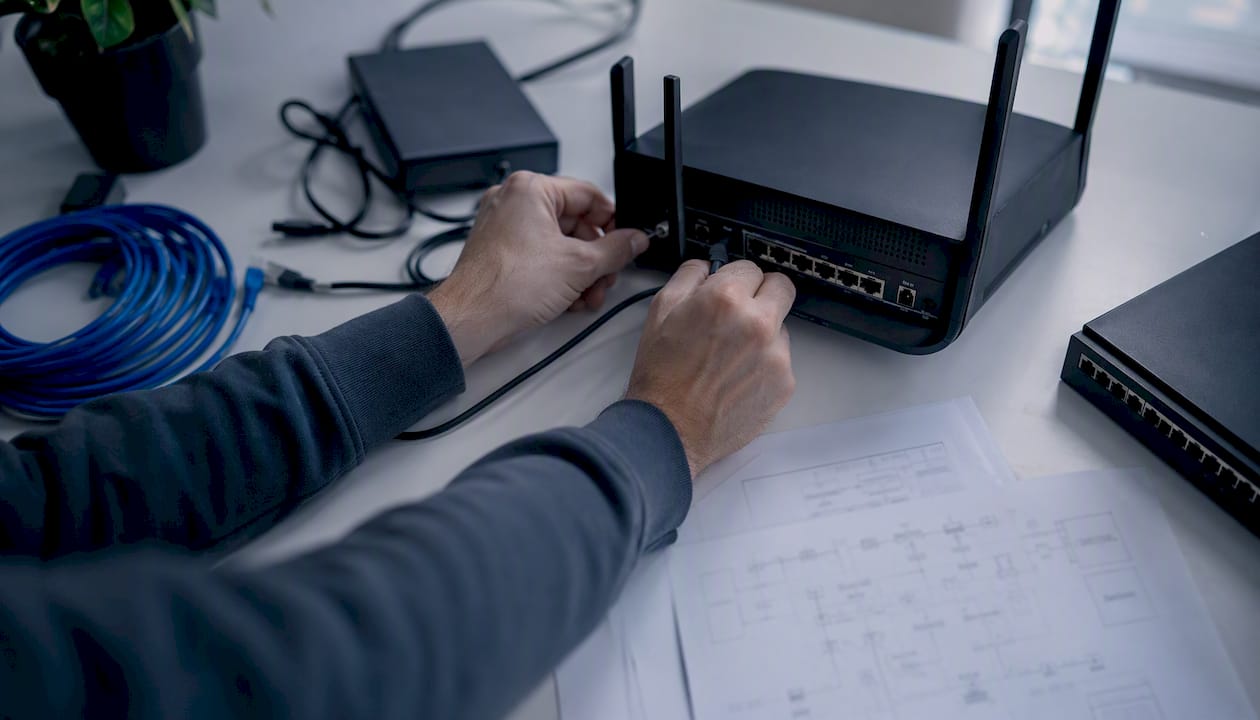
Stage two: deep crawl with rendering. For key template types (product pages, blog posts, landing pages), turn on JavaScript rendering and crawl a representative sample rather than every URL. Rendering is slow and resource-intensive, so applying it selectively to the templates that actually use client-side content keeps the crawl fast without missing real issues. Staging a shallow pass followed by a focused, rendered deep pass cuts through the noise that a single all-at-once crawl tends to bury real problems in.
Export everything you can. CSV files let you filter and sort thousands of URLs in a spreadsheet. HAR files capture the full network request timeline for a page, useful when a resource is loading slowly or failing silently. Server logs, if you have access to them, show you what bots actually did, not what a simulated crawler predicted they'd do.
Pro Tip: When you're staring at a spreadsheet of 400 flagged issues, triage by impact times effort. A broken canonical tag on your top 10 landing pages beats a missing alt tag on an old blog post every time, even though both show up as "errors" in the same report.
What Do Common Crawl Errors Mean, and How Do You Fix Them?
Crawler reports throw a lot of technical language at you, and most of it maps to a small set of recurring problems. Here's what you'll actually run into, and what to do about each one.
- Robots.txt Disallow: a rule is blocking bots from a folder or page entirely. Check the file for overly broad rules like
Disallow: /left over from a staging environment, and remove or narrow them. - 403 or bot-specific blocks: the server is rejecting the crawler's request, often because a firewall or CDN is treating the bot's user agent as suspicious. Tools that simulate Googlebot's user agent can reveal these hidden blocks, which regular browsing won't show you since your browser isn't flagged the same way.
- 404 and 5xx errors: the page doesn't exist or the server failed to respond. Fix broken internal links pointing to 404s, and investigate server logs for recurring 5xx errors that suggest a capacity or configuration problem.
- Redirect chains: a URL redirects to another redirect before reaching its final destination. Each hop adds latency and wastes crawl budget, so point the original link straight to the final URL.
- Meta noindex: a page explicitly tells search engines not to index it, sometimes left over from a staging push. Search for stray noindex tags across templates, not just the one page you noticed.
- Canonical issues: a canonical tag points to the wrong URL or to a page that itself redirects, confusing which version should rank. Audit canonical tags in bulk after any URL structure change.
- Duplicate content: near-identical pages compete against each other for the same rankings. Consolidate with canonicals or 301 redirects where consolidation makes sense.
- Blocked resources: CSS or JavaScript files blocked by robots.txt can prevent bots from rendering the page correctly, even if the HTML itself is accessible.
- Slow server response: pages that take too long to respond get crawled less frequently over time, which compounds on larger sites.
Whatever you fix, don't assume it worked until you check. Re-run the Test Live URL check and confirm Page fetch shows Successful and Indexing Allowed shows Yes. And keep this in mind: a successful live test confirms the page is accessible and likely indexable, but it's not a guarantee Google will actually index or rank it. Crawling is a prerequisite for ranking, not a promise of it.
When Do You Need JavaScript Rendering or Log-File Analysis?
Standard crawlers read raw HTML. If your site relies heavily on JavaScript to inject content, navigation, or even entire pages (common with React or Vue-based sites), a crawler that doesn't render JS will report a blank or incomplete page even though a browser shows it fine. Test this by comparing what Screaming Frog's JavaScript rendering mode shows against a plain text-only crawl of the same URL. If the content differs significantly, you've got a rendering-dependent SEO problem worth fixing.
Server log analysis takes a different angle: instead of simulating what a crawler should see, it shows you what Googlebot actually did. Pull your raw server logs, filter for Googlebot's user agent and verified IP ranges, and you'll see exactly which pages got crawled, how often, and which pages got zero visits at all. Orphan pages (technically live but never linked internally) often show up here precisely because no crawler ever found them through normal link-following, but Googlebot's logs reveal it tried anyway from an old sitemap entry or external backlink.
For edge cases that don't show up in normal crawling, controlled test environments help. Crawl Lab provides endpoints designed specifically to reproduce difficult crawler scenarios, delayed server responses, redirect loops, varied HTTP status codes, and JS rendering differences, so you can verify how your crawler of choice actually handles them before trusting its output on your real site. Practitioners use these obstacle-course sites to benchmark crawler behavior against edge cases that a standard link check simply won't surface.
Pro Tip: Run log analysis first to find your real problem pages, then point a JS-rendered crawl only at those specific URLs. Rendering every page on a large site takes hours; rendering the 40 pages your logs flagged as under-crawled takes minutes.
Is It Legal to Run a Crawl Test on Any Website?
Crawling your own site raises no legal questions at all. Crawling someone else's site is where things get more nuanced, and worth understanding before you point a tool at a competitor's domain for research.
Crawling public websites is commonly legal when the crawler honors robots.txt, respects the site's terms of service, and doesn't overload the server with excessive requests. Problems arise from the behavior, not the act of crawling itself: hammering a server with thousands of rapid requests, scraping content behind a login wall, or collecting personal data without consent can all create legal exposure regardless of your intent.
- Always check and respect robots.txt before crawling a site you don't own.
- Throttle your request rate so you're not degrading site performance for real visitors.
- Read the site's terms of service; some explicitly prohibit automated access even where robots.txt allows it.
- Never scrape personal data, login-gated content, or anything clearly marked private.
If you're auditing a client's site, a competitor's public pages, or any domain you don't control, get explicit written permission before running an aggressive crawl. When in doubt, stick to lightweight, low-request testing and stop the moment a site owner asks you to.
What Should Your Post-Crawl Follow-Up Checklist Include?
A crawl test is only useful if someone actually fixes what it finds and confirms the fix worked. Keep a running log your team can reference and update, rather than treating each crawl as a one-off report that gets skimmed once and forgotten.
For robots.txt changes, confirm the updated file is live by fetching it directly and checking the specific rule. For noindex removal, run the live URL test and confirm Indexing allowed flips to Yes. For redirect fixes, trace the URL manually or with a crawler to confirm it resolves in a single hop. For server errors, check both the live test and your server logs over the following week to make sure the fix holds under real traffic, not just in a single test.
Copy this table into a shared spreadsheet or project tool so your team has one place to track crawl issues across every campaign launch, not just the one you're working on right now.
Practical takeaways from running crawl tests on real marketing sites
The same three problems trip up marketing sites over and over: a noindex tag left behind from a staging environment that nobody remembered to remove, a web application firewall blocking Googlebot because its user agent looked suspicious during a traffic spike, and JavaScript-heavy landing pages that take so long to render that crawlers time out before seeing the content.
None of those are exotic. They're all preventable with the checks in this guide, and yet they show up constantly because crawl testing gets treated as a one-time launch task instead of an ongoing habit. The practical rule worth adopting: measure impact before you fix anything. A crawl report with 200 flagged issues is overwhelming until you sort by which pages actually drive traffic or conversions, then work down that list instead of the raw error count.
This matters even more when you're running active experiments. A/B tests and personalized landing pages add extra script weight and conditional content that can confuse crawlers if implemented carelessly, which is part of why a platform like Gostellar keeps its script lightweight by design, so a live experiment doesn't accidentally become a crawlability problem on top of everything else you're already tracking. Tie your crawl checklist into whatever monitoring you already run for campaign launches, and you'll catch these issues in days instead of months.
Frequently Asked Questions
What is a website crawl test, exactly? It's a check that confirms whether search engine bots can access, fetch, and index your pages, run either on a single URL through Google Search Console or across an entire site with a dedicated crawler tool.
How is a crawl test different from a full SEO audit? A crawl test focuses narrowly on technical accessibility: can bots reach the page, fetch it successfully, and index it. A full SEO audit includes that plus content quality, backlinks, keyword targeting, and page speed.
Does passing a crawl test guarantee my page will rank? No. A successful live test confirms the page is accessible and likely indexable, but ranking depends on content quality, relevance, and other factors entirely outside the crawl itself.
How often should I run a website crawl test? A lightweight single-URL check makes sense monthly, or right after any major page launch. A full site-wide crawl with JavaScript rendering is worth running quarterly, or immediately after a site migration or redesign.
What's the difference between crawl budget and a crawl test? Crawl budget refers to how many pages a bot will crawl on your site within a given timeframe, which matters mostly for very large sites. A crawl test is the diagnostic process you run to find out what's blocking or slowing that crawling down.
Can I test a competitor's website without permission? Light, respectful checks that honor robots.txt and don't hammer the server are commonly fine. Aggressive scraping or bypassing access restrictions carries legal risk, so stick to publicly available pages and reasonable request rates.
Sources
- URL Inspection tool - Search Console Help
- Website Crawler: Online Spider to Test URLs for Errors - Sitechecker
- CrawlerCheck: Free Googlebot & AI Crawlability Test
- WebCrawlerAPI / crawl-lab - GitHub
Recommended
Published: 8/14/2026