How to Run an ADA Compliant Website Test That Actually Holds Up
Run an automated WCAG scanner today. It will catch the low-hanging fruit fast and free, but no automated report certifies you as compliant. DOJ guidance treats these tools as a starting point, not a verdict, because they only surface roughly 30 to 40 percent of real issues. Scan first, export the report, then flag your checkout, signup, and contact flows for a human to review before you call anything fixed.
TL;DR:
- Automated scanners only identify about 30 to 40 percent of accessibility issues, leaving critical gaps that require manual testing to address.
- The effectiveness of a scan depends on selecting representative pages, handling authenticated content, and triaging issues based on real user impact.
- Fixing simple issues on individual pages can often take one to two days, while comprehensive site remediation may span several months.
- Automated tools are economical for initial detection but should be supplemented with professional audits for legal and contextual judgment.
- Incorporating accessibility checks into ongoing development and A/B testing can improve user experience and reduce costly post-launch fixes.
Table of Contents
- Which type of ADA compliant website test do you actually need?
- How do automated scanners actually check a site?
- How do you run a test that produces useful results?
- How do you turn scanner output into a fix list?
- How long does testing to full remediation usually take?
- Automated tools vs. professional audits: what does each cost?
- A marketer's short perspective: accessibility and A/B testing
- A lightweight way to test and improve pages as you go
- Sources
Which type of ADA compliant website test do you actually need?
Not every scan fits every job. A marketer checking a new landing page needs something different than a developer wiring accessibility checks into a release pipeline, and picking the wrong tool wastes time without closing the gap that matters.
- Quick online scanners (paste a URL, get a report) are fast and usually free. They're built for one-off checks on public landing pages, not for anything requiring a login.
- Browser extensions like WAVE and the axe browser extension let you test pages exactly as a logged-in user sees them, which matters for account dashboards, gated content, and anything behind a paywall.
- Crawling and site-audit tools sweep entire domains and are the right call when you need ongoing, site-wide coverage rather than a single-page snapshot.
- API and testing engines, most built on axe-core, plug into CI/CD pipelines so accessibility checks run automatically with every code deploy.
The tradeoffs come down to four things: how much of your site the tool actually covers, whether it can get past a login wall, how usable the report is for the person who has to fix things, and what it costs. W3C WAI's evaluation tools catalog recommends picking the tool type based on your specific goal rather than defaulting to whatever ranks first in a search.
How do automated scanners actually check a site?
Automated tools crawl the DOM, the structural map of your page's HTML, and run it against a rule engine. Most of the popular ones, including WAVE's testing engine, are built on or compatible with axe-core, which checks pages against WCAG success criteria line by line.
Here's what these tools catch reliably:
- Missing or empty
altattributes on images - Color-contrast ratios that fall below WCAG thresholds
- Form fields with no associated label
- Broken or missing ARIA attributes
Automated scans detect approximately 30 to 40 percent of potential accessibility issues, according to the U.K. government's own accessibility testing guidance. That leaves a wide gap. Scanners can confirm an image has alt text, but they can't tell you whether that alt text actually describes the image. They can't judge whether your tab order makes sense to a keyboard-only user, whether a modal traps focus correctly, or whether a screen reader user can actually complete your checkout flow. Cognitive load, confusing navigation logic, and real-world assistive-technology behavior sit entirely outside what a rule engine can evaluate. That gap is exactly why manual testing exists.
How do you run a test that produces useful results?
A scan is only as good as the pages and workflows you point it at. Random spot-checking wastes the run. Here's the order that actually produces something you can act on:
- Pick representative pages and flows. Your homepage, your top landing pages, your checkout, and your account signup matter more than an obscure archive page from 2019.
- Match the tool to the flow. Public marketing pages work fine with an online URL scanner. Anything requiring a login needs a browser extension or an authenticated crawl.
- Handle authenticated content deliberately. Standard scanners can't get past a login screen unless they support authenticated scanning or you run the extension inside an active logged-in session.
- Run the scan and export everything. Save a timestamped copy of the report and attach it to your issue tracker so there's a paper trail.
- Triage by impact, not by list order. Fix keyboard-navigation dead ends, missing form labels, and broken checkout elements before you touch cosmetic contrast issues on a footer nobody clicks.
Pro Tip: Keep every scan report, even the messy early ones. A dated history of scans and fixes is far more convincing to a regulator or plaintiff's attorney than a single clean report run the week before a complaint lands.
How do you turn scanner output into a fix list?
A raw scanner report is a list of rule violations, not a to-do list. The translation step is where most teams lose momentum, or waste effort chasing issues nobody will ever encounter.
Map each flagged issue to an actual user task: does this violation block someone from completing checkout, submitting a support request, or finding your phone number? Rank fixes using severity, how many users a broken element affects, and how much developer time the fix will take. A missing label on your primary signup form outranks a contrast issue on a rarely visited legal disclaimer page every time.
Not every flagged item is a real barrier. Before you assign a ticket, run a quick manual check: tab through the element with your keyboard alone, or spot-check it with a screen reader. Some flags are technically correct but practically harmless, and separating those from genuine barriers keeps your team focused on what actually matters.
- Confirm severity with a 30-second keyboard test before filing a ticket
- Screenshot before-and-after states so remediation has evidence attached
- Re-run the scan after each fix batch to confirm the issue actually cleared
Pro Tip: Never mark an issue "fixed" from memory. Re-scan and screenshot the result. Regulators and plaintiffs' attorneys care about your evidence trail as much as the fix itself, according to ADA.gov's own guidance on documentation.
How long does testing to full remediation usually take?
An initial automated scan takes minutes. Turning that report into real remediation is a longer project, and the timeline depends heavily on how much of your site you're testing and how deep the issues run.
A single landing page with a handful of contrast and alt-text problems can often be fixed within a day or two once someone owns the ticket. A full site audit covering a multi-page marketing site, an e-commerce checkout, and an authenticated account area is a different scope entirely. Expect several weeks for the initial automated sweep plus manual review, followed by a remediation phase that often runs one to three months depending on how much of the fix touches your core codebase versus your CMS templates.
The slowest part is rarely the testing. It's prioritization meetings, developer bandwidth, and design review for anything touching layout or color palettes. Treating accessibility as a one-time project instead of an ongoing lifecycle is the biggest reason remediation timelines balloon. W3C WAI recommends folding automated scans into your regular development and release cycle so new issues get caught before they pile up into another giant remediation project six months later.
Automated tools vs. professional audits: what does each cost?
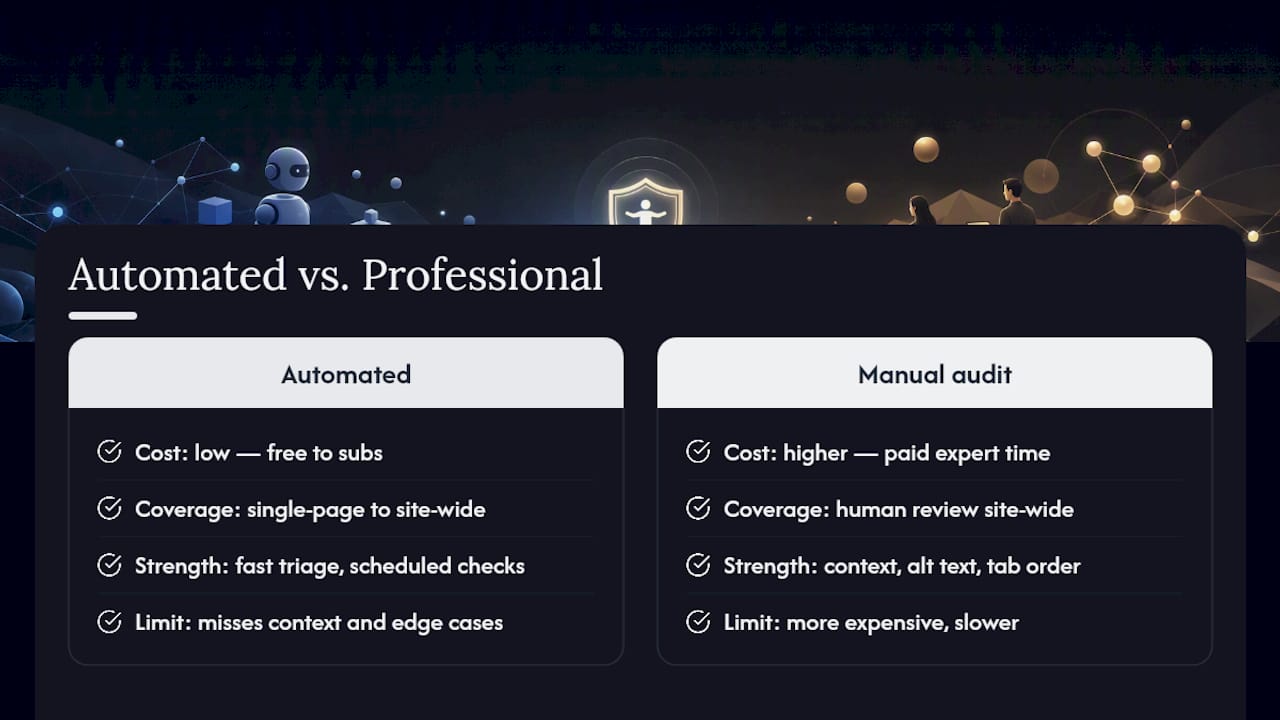
Automated scanners occupy a wide price range. Many online scanners and browser extensions, including WAVE, offer free tiers that cover single-page checks, which makes them the obvious first move for any small or mid-sized site. API-based engines and site-wide crawling tools that plug into a CI/CD pipeline typically move into paid subscription tiers once you need scheduled monitoring across dozens or hundreds of pages.
Professional manual audits cost meaningfully more, because you're paying for a person, often working with actual assistive technology, to walk through your site the way a real user would. That expense buys something automated tools can't: judgment about context, meaningful alt text, logical tab order, and edge cases a rule engine will never flag. For a site with real legal exposure, particularly one handling transactions, accounts, or public-facing services, that manual layer is worth the added cost even after a scanner has already caught the easy wins.
The efficient split most teams land on: run automated scans continuously and cheaply for triage, then budget for a professional audit on a slower cycle, maybe once or twice a year, to catch what the scanner structurally cannot.
A marketer's short perspective: accessibility and A/B testing
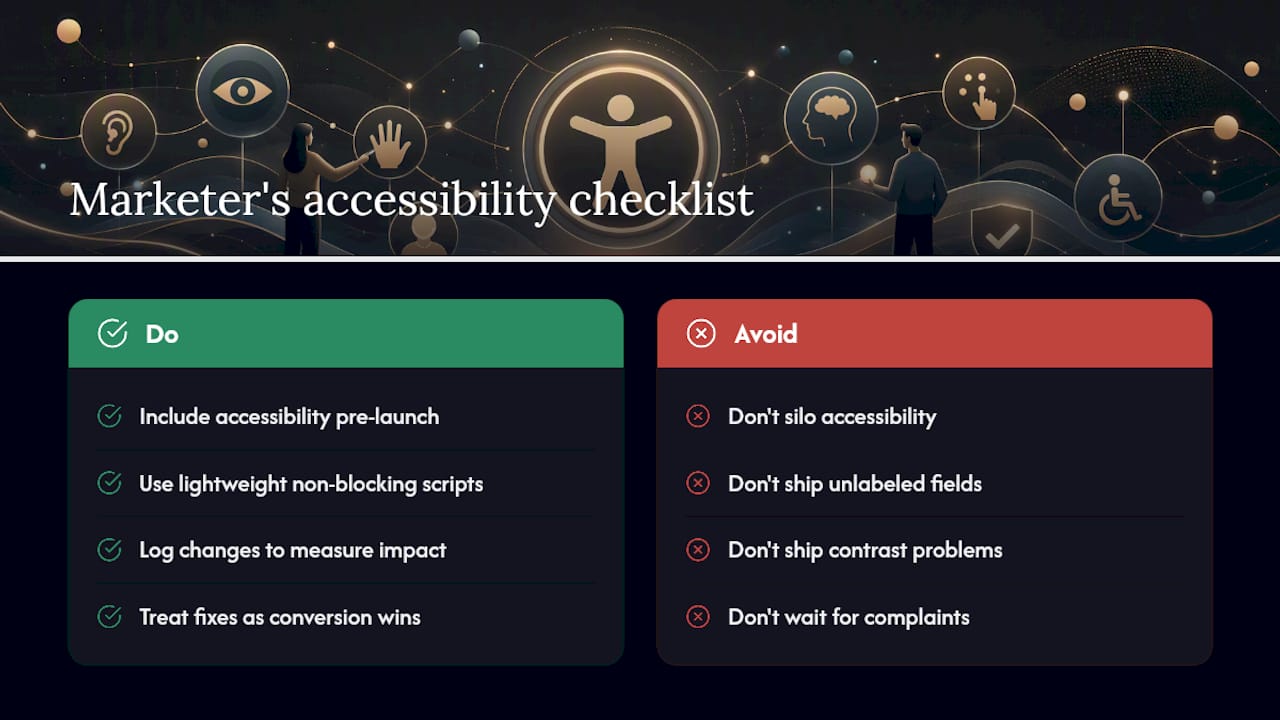
Accessibility checks belong in your pre-launch checklist right next to your QA pass, not in a separate compliance silo somebody deals with later, because Web Accessibility: Boosting Inclusion and SEO Impact shows how accessibility benefits marketing outcomes as well. Every new landing page or test variant is a fresh chance to introduce a contrast problem or an unlabeled form field, and catching it before launch is cheaper than catching it after a complaint.
Favor lightweight, non-blocking scripts for any testing tool you run, and log what you changed so your team can actually measure impact. Treat every accessibility fix as a conversion fix too: better labels and clearer contrast tend to help every visitor, not just the ones using assistive technology. Share those before-and-after metrics with your team once the fix ships.
— Juan
A lightweight way to test and improve pages as you go
Accessibility fixes and conversion experiments solve the same underlying problem: figuring out what's actually stopping visitors from completing a task. Gostellar's no-code visual editor lets marketing teams make and test page changes, including the label fixes, contrast adjustments, and layout tweaks an accessibility scan turns up, without waiting on a developer sprint.
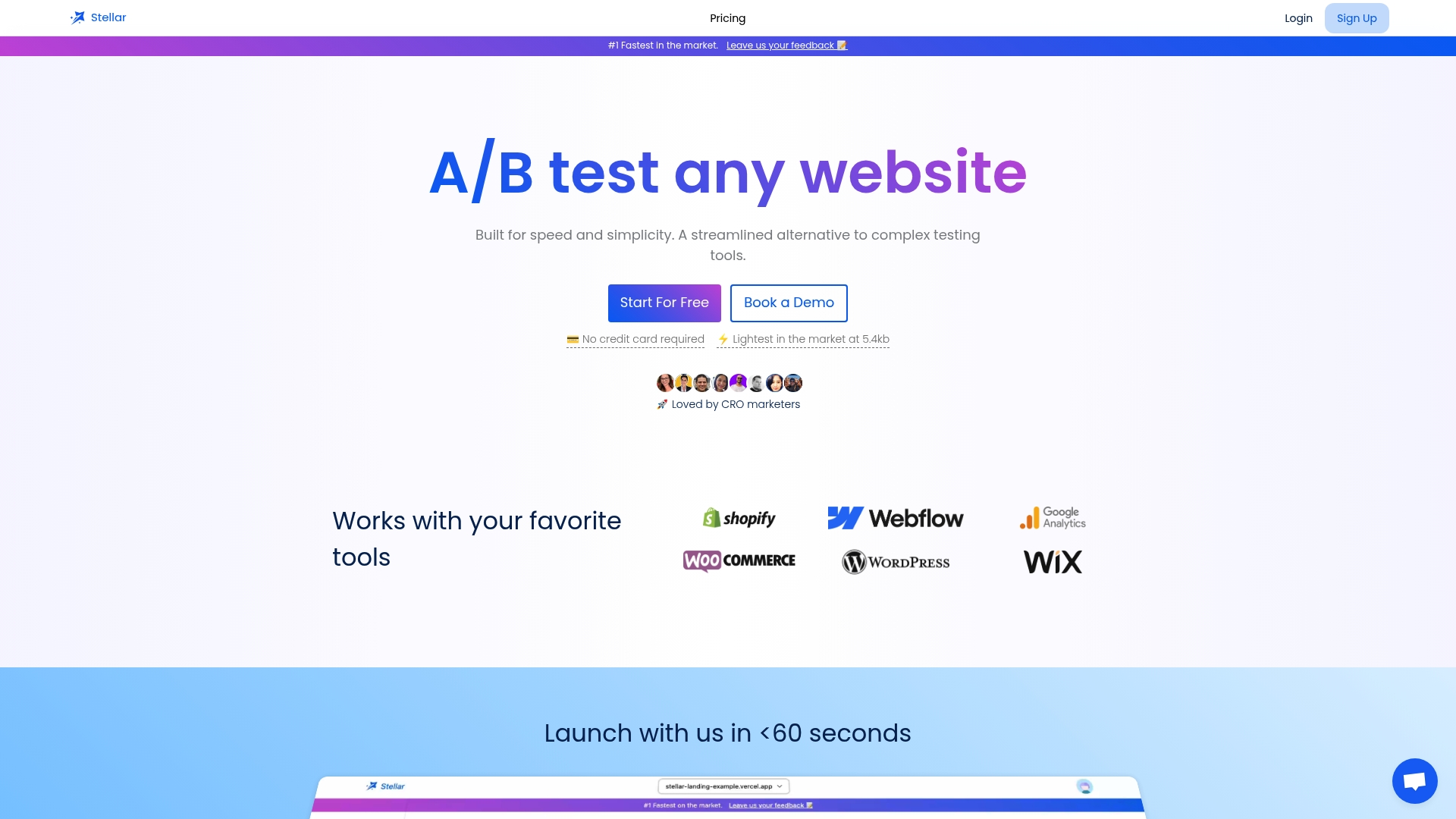
The script runs at 5.4KB, light enough that it won't undo the performance gains you get from cleaning up bloated code during remediation. Real-time analytics show you whether a fix or variant is actually moving the needle, and dynamic keyword insertion keeps personalized landing pages consistent across a full remediation pass. If you're already auditing pages for accessibility, that's the moment to also test the fix. Visit Gostellar to try a quick test and see how the two workflows fit together.
Sources
Recommended
Published: 8/25/2026