
How to Test Website Availability: A Practical Guide
To test website availability, send a request to your URL from a server outside your own network, then check whether it answers, with which HTTP status code and how fast. Run the same check from several regions, require repeated failures before you call it an outage, and compare the result with what you see in your own browser. That combination tells you whether the site is down for everyone or only for you.
This guide walks through the one-off check, how to read the result, how to diagnose a failure, and how to set up continuous monitoring so you hear about downtime before your customers do.
TL;DR
- A basic availability test sends a request from an external server and reports whether the site responded, the status code and the response time.
- Test from more than one location. A single failure can be a regional network problem or a probe hiccup, not a real outage.
- A 200 means the server answered, not that the page is correct. Add keyword and SSL certificate checks for a real picture.
- If the site loads for the external check but not for you, suspect your ISP, DNS cache, browser extension or firewall.
- For campaign pages, availability is the floor: a page that is up but slow or broken still wastes ad spend and corrupts test data.
Table of Contents
- What a website availability test actually measures
- How to test website availability right now
- How to read HTTP status codes
- Why you should test from multiple locations
- Is it down for everyone, or just you?
- What to check when the test fails
- Set up continuous monitoring and alerts
- Why availability is only the floor for marketers
- A simple availability routine for a small team
- Test what visitors do, not only whether the site loads
- FAQ
- Sources
What a website availability test actually measures
An availability test answers a narrow question: when something outside your network asks for this URL, does it get an answer? The free website uptime check from Postman is a good example of the simplest version. It sends a request from a Postman server and reports reachability and response time.
Most tests report three things:
- Reachability: did the DNS lookup, connection and request complete at all?
- Status code: what did the server say about the request?
- Response time: how long did it take to start answering?
That is useful, but it is shallow. A server can return a successful code while showing an empty template, a maintenance message or a broken checkout. Better monitoring checks for expected content through keyword matching and validates the SSL certificate, because an expired certificate can block visitors while basic reachability still looks fine.
There is one more limit worth knowing. Availability tests only communicate over publicly available IP addresses and hostnames. Microsoft's documentation notes that an internal IP address that is not publicly routable can cause an unsupported-URL error. If you are testing a staging site behind a VPN or an office allowlist, an outside tester will fail by design.
How to test website availability right now
You do not need an account for a first check. Work through these steps in order.
- Open your site in a private window. This rules out cookies, logged-in state and most extensions.
- Run an external check. Paste the full URL, including https://, into a free online status checker. Use the exact page you care about, such as a landing page or checkout, not only the homepage.
- Note the status code and response time. Compare them with the table below.
- Repeat from a second location. If the tool offers a choice of regions, run at least two. Otherwise use a second tool.
- Compare with your own access. Your result against the external result tells you where the problem sits.
If you only ever test from your own laptop, you are testing your own connection as much as your website.
How to read HTTP status codes
Status codes are grouped by their first digit. For availability work you mostly need the groups, plus a handful of specific codes.
| Code | Meaning for availability | What to do |
|---|---|---|
| 200 | The server answered successfully | Confirm the page content is right with a keyword check |
| 301 / 302 | The URL redirects elsewhere | Confirm the final destination loads and the chain is short |
| 403 | The server refused the request | Check firewall, bot protection and IP rules |
| 404 | The page was not found | Check the URL, a deleted page or a broken deploy |
| 429 | Too many requests from this client | Slow the test down or allowlist the tester |
| 500 | Generic server error | Look at server logs and recent deploys |
| 503 | Server not ready to handle the request | Usually temporary; check capacity and maintenance mode |
The 503 case is worth a closer look. MDN describes it as a temporary condition where the server is not ready to handle the request, ideally with a Retry-After header estimating recovery. It also notes that rate limiting of specific clients should use 429 instead. So if you see 503 from every location, the server side is the likely cause. If you see 429, the tester is probably the one being limited.
A timeout or connection error has no status code at all. That points to DNS, the network path, the firewall or a server that is fully down, rather than an application error.
Why you should test from multiple locations
The internet is not one network. A visitor in Frankfurt and a visitor in Dallas can reach your site by completely different routes, resolvers and CDN edge servers. Testing from several places helps separate global outages from regional problems such as network, ISP or routing faults, and helps verify CDN performance.
This matters most if you:
- run paid campaigns that target several countries;
- serve static assets through a CDN;
- use geo-based redirects or localized landing pages;
- sell to customers behind corporate firewalls.
Microsoft's guidance for its monitoring product says the same thing in operational terms: run availability tests from multiple test locations, and when one fails, inspect the end-to-end transaction details, server response and correlated server-side telemetry. Multiple locations are not a luxury feature. They are how you stop chasing false alarms.
Is it down for everyone, or just you?
This is the most common reason people search for an availability test, and the fastest way to answer it is a comparison. Check the site from an external server, then from your own device. If it loads externally but not for you, the problem may be your ISP, DNS cache, a browser extension or a firewall.
A quick local sequence:
- Try another browser or a private window to rule out extensions.
- Switch from Wi-Fi to your phone's mobile connection.
- Flush your DNS cache or try a different public DNS resolver.
- Turn off your VPN, or turn it on if you suspect a regional block.
- Ask a colleague in another office or city to load the page.
The reverse also happens: the external tester says the site is down while it works fine for you. Uptimecheck's diagnostic guide lists the usual reasons. A monitor can fail while the site works because of firewall or bot protection, DNS differences, timeouts, location-specific network faults, or the tester's own VPN, login, office-IP allowlist or hosts-file entry. Checking from multiple independent locations helps separate these causes, because access controls and network paths can treat a monitoring probe very differently from a real visitor.
Do not trust a single failed check
One failed request is weak evidence. Azure's availability tests, for instance, with retries enabled, report a failure only after three successive attempts fail. A common rule in monitoring practice is to require two consecutive failures from two distinct geographies before paging anyone, since a single failure may be a checkpoint hiccup.

What to check when the test fails
Work from the outside in. Each step narrows the cause.
- DNS. Does the domain resolve to the IP address you expect? A wrong or missing record after a migration is a classic cause.
- Connection and certificate. Does the server accept a secure connection, and is the SSL certificate valid and unexpired?
- Redirects. Does the URL bounce through a long chain or loop?
- Response headers and status. What did the server actually say?
- Security layers. Is a firewall or bot filter blocking the tester?
- Server and application logs. What happened on your side at the moment of the failure?
Good diagnostics help at steps 1 to 4. Uptimecheck says its tools can show the resolved IP, redirects, certificate, headers, response start, a screenshot or a traceroute, which is exactly the evidence needed to decide whether the fault is the website, DNS, security controls or the network path. For step 6, follow the Azure guidance: look at the troubleshooting report, the server response and the server-side telemetry gathered while the failed test was processed.
Set up continuous monitoring and alerts
A manual check tells you about this minute. Monitoring tells you about every minute. A solid setup has five parts:
- Multiple regions at a chosen interval.
- Success conditions that define what "up" means: status code, response time, body content or headers.
- Retry logic so one blip does not wake anyone.
- Notification routing that matches severity.
- A status page for customers.
On frequency and channels, monitors from services such as Instatus can run every 30 seconds and notify teams through email, SMS, Slack, Teams, phone calls or webhooks when a monitor fails or recovers. On routing, one widely shared best practice is to use SMS or phone for critical incidents, push or chat for warnings, and a dashboard or digest for informational items, escalating to a secondary on-call person if the primary does not acknowledge.
During an incident, a public status page can reduce repeated questions from customers. Publish only the detail people need, as recommended in WP Remote's monitoring guide.
Monitor the pages that earn revenue
Monitoring only the homepage is a common mistake. Add checks for the pages that carry money or data: the main landing pages, the pricing page, the signup or checkout flow and any page with an active experiment. A broader view of this kind of checkup is covered in this overview of website auditing techniques, which fits well alongside availability checks on marketing sites and campaign pages.
Why availability is only the floor for marketers
A site that is "up" can still lose you conversions. A page that takes too long to start loading, a script that blocks rendering or a variant that flickers all cost visitors without ever tripping an uptime alert. Availability tells you the door is open. Performance tells you whether people walk through.
If you run experiments, availability has a second job: protecting your data. When a variant page fails for part of the traffic, or one region cannot reach it, your results skew without any obvious warning. Our guides on website performance metrics for marketers and page load time benchmarks cover what to track beyond "is it up". If your numbers ever look odd, our quick triage for test errors explains how to catch sample ratio mismatch and logging problems. For live dashboards, see our guide to real-time analytics.
A simple availability routine for a small team
You do not need an enterprise setup. This routine fits a marketing team of one to five people.
Before every campaign launch:
- Run an external check on every landing page URL.
- Test from at least two regions that match your ad targeting.
- Confirm the SSL certificate is valid.
- Confirm the key content or form actually appears.
Continuously:
- One monitor per revenue-critical page, with keyword checks.
- Two-failure confirmation from two locations before alerting.
- Critical alerts by SMS or phone, warnings in chat.
After every incident:
- Record the time, the cause and the fix.
- Check whether any running experiment was affected, and mark that period in your analysis.
The last point is the one most teams skip. If an outage hit one variant harder than another, that window can bias the result, so treat it as suspect data.
Perspective
We build an A/B testing tool, so we see availability from the angle of what happens after the page loads. Our view is that a fast, light page is part of being available. Stellar is designed around a script of only 5.4KB, so that testing adds as little weight as possible to the pages you are trying to improve.
Marketers should not need a developer to launch an experiment, and they should not need to wonder whether the testing layer is the thing slowing the site. That is why we focus on a no-code visual editor, real-time analytics and goal tracking that show you quickly what is happening on a page.
Check that the site is reachable, then measure what visitors do once they arrive. Both belong in the same routine.
Juan
Test what visitors do, not only whether the site loads
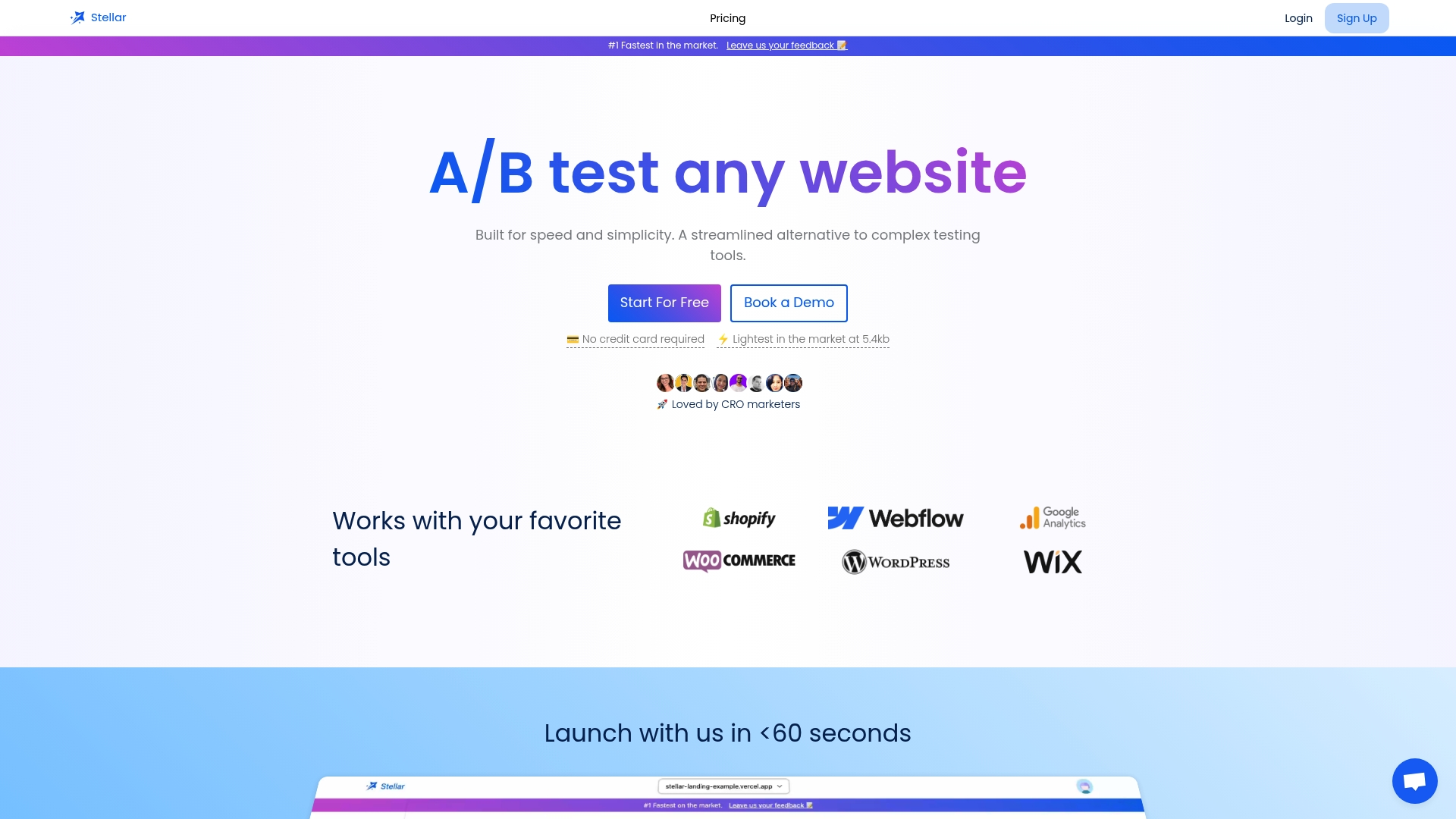
Once your pages pass an availability check, the next question is which version of them converts best. Stellar is an A/B testing platform for marketers and growth teams, with a no-code visual editor, dynamic keyword insertion for personalized landing pages, advanced goal tracking and real-time analytics. It integrates directly with WordPress, Shopify, Webflow, Wix, Squarespace, Framer and Bubble.
Plans are based on monthly tracked users. Sandbox is $0 per month, Plus is $29 per month, Pro is $99 per month and Scale is $399 per month, and Enterprise has no published price. You can see the plans and start on Stellar and have your first experiment running without writing code. If you are planning your first tests, our guide on how to run a marketing A/B test that works is a good next read.
FAQ
How do I check if a website is working or not?
Load the exact URL in a private browser window, then run it through an external status checker that reports the status code and response time. If the external check succeeds and your browser fails, the issue is local to you. If both fail, the problem is likely with the site.
How often should I check website availability?
For a revenue-critical page, continuous monitoring at short intervals is the norm. Some monitoring services can run checks as often as every 30 seconds. Pair a short interval with retries so a single dropped request does not trigger an alert.
How do I check if a site is reachable from another country?
Use a tester that runs requests from several regions, or ask someone in that country to load the page. Geographic testing helps you spot regional network, ISP or routing problems and CDN issues that your own location never shows. Compare the status code and timing between locations.
Does a 200 status code mean my page is fine?
Not necessarily. It means the server answered successfully, but the page can still show wrong or missing content. Add a keyword check for text that should be on the page, and monitor the SSL certificate so an expired one does not block visitors unnoticed.
Sources
- Website Uptime Check, Postman
- How to check website availability from multiple locations, BrowserStack
- Application Insights availability tests, Microsoft Learn
- Diagnose problems that cause availability tests to fail, Microsoft Learn
- Is it down right now?, ipstatus.com
- Why a monitor is down when your site works, Uptimecheck
- Website Uptime Monitoring: What to Check and How to Set It Up, WP Remote
- Get started with Monitoring, Instatus Help
- Website Monitoring Best Practices, Dotcom-Monitor
- 503 Service Unavailable, MDN Web Docs
- Website auditing techniques, benefits and AI SEO strategies